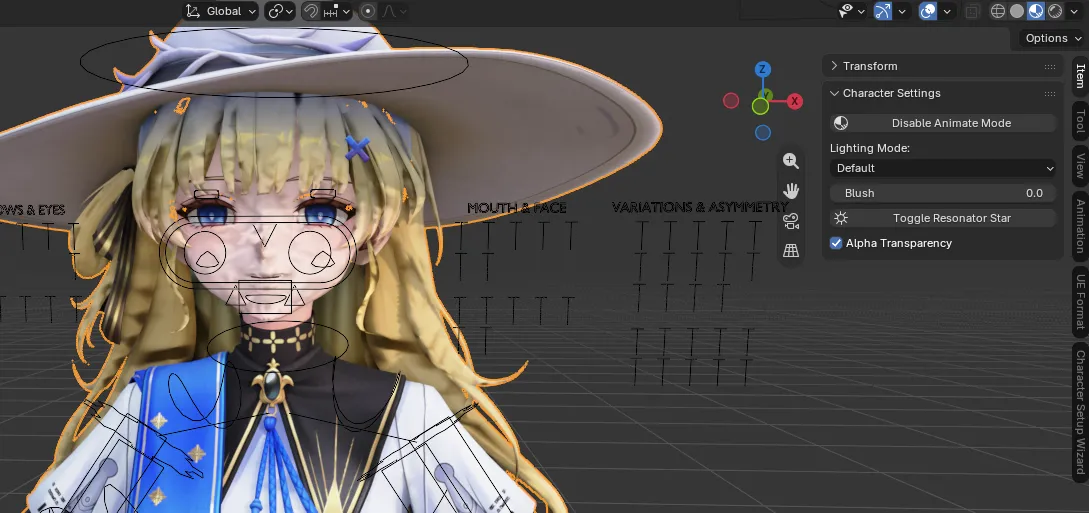
Lights & Coloramp Configuration
1. Controlling Light & Shadow Direction
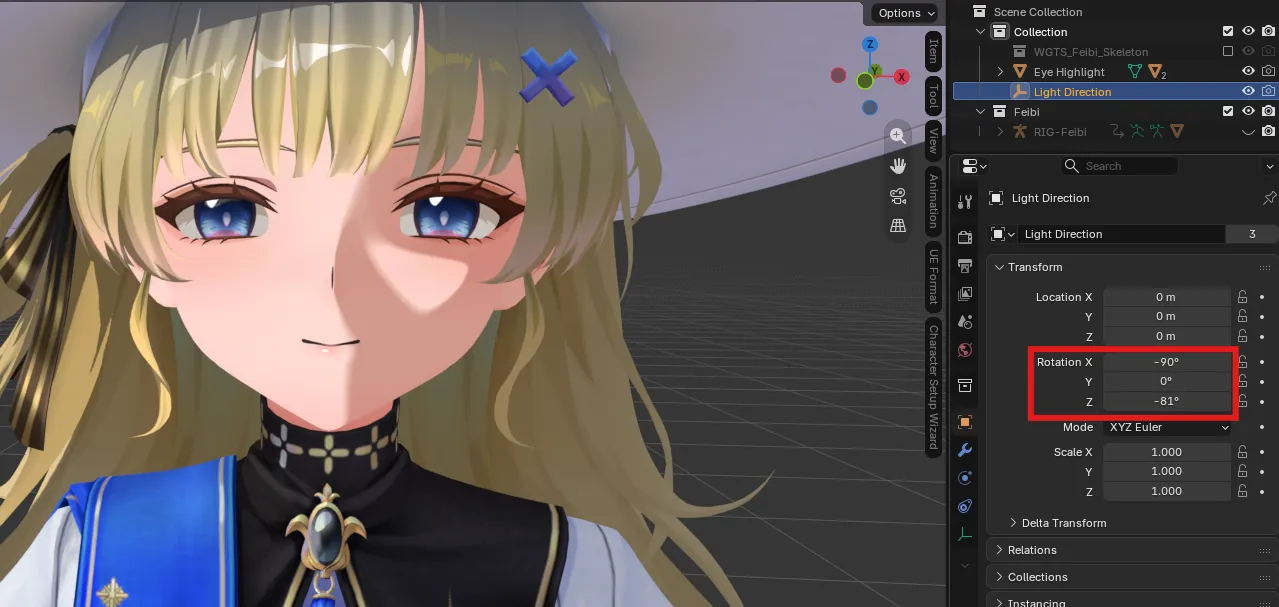
Section titled “1. Controlling Light & Shadow Direction”During character setup, a dedicated Light Direction_<Character> object is created in your scene collection.
- Locate
Light Direction_<Character>in the Outliner panel. - Open the Item Transform panel in Object Properties.
- Adjust the Rotation values (XYZ Euler) to rotate the light vector:
- Rotation Z: Rotates the sun angle horizontally around the character.
- Rotation Y: Adjusts the horizontal tilt of the light across the character.
- Rotation X: Adjusts the vertical pitch of the shadow line.
2. Character Settings (Item Panel)
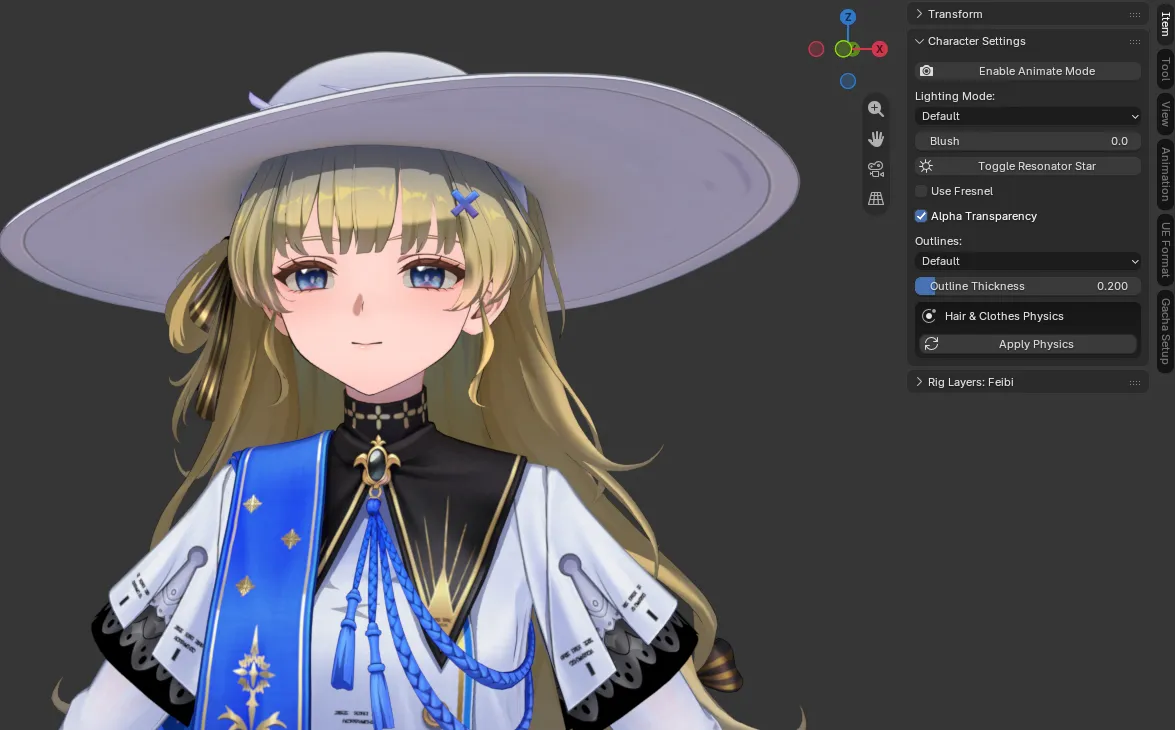
Section titled “2. Character Settings (Item Panel)”Select your character mesh or armature and press N in the 3D Viewport. Open the Item tab to access the Character Settings panel, providing real-time controls without having to manually edit shader node trees:
- Animate Mode: Temporarily swaps complex toon shaders for lightweight materials to ensure smooth viewport animation playback.
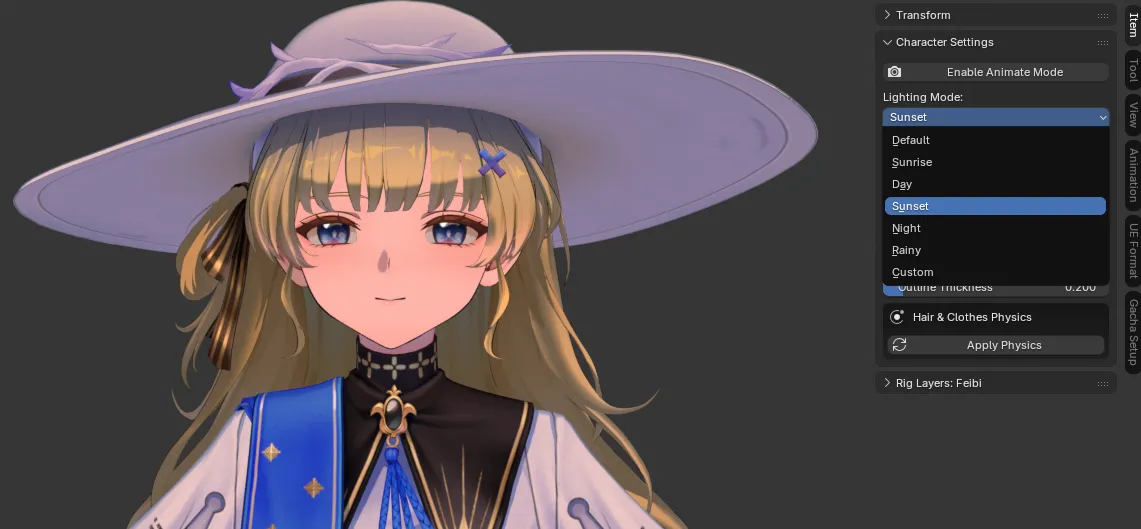
- Lighting Mode: Switch between built-in ambient lighting presets or choose Custom to tune individual color channels.
- Blush: Adjusts the intensity of the character’s facial blush texture.
- Toggle Resonator Star: Toggles the visibility/animation driver for the character’s Resonator star emblem.
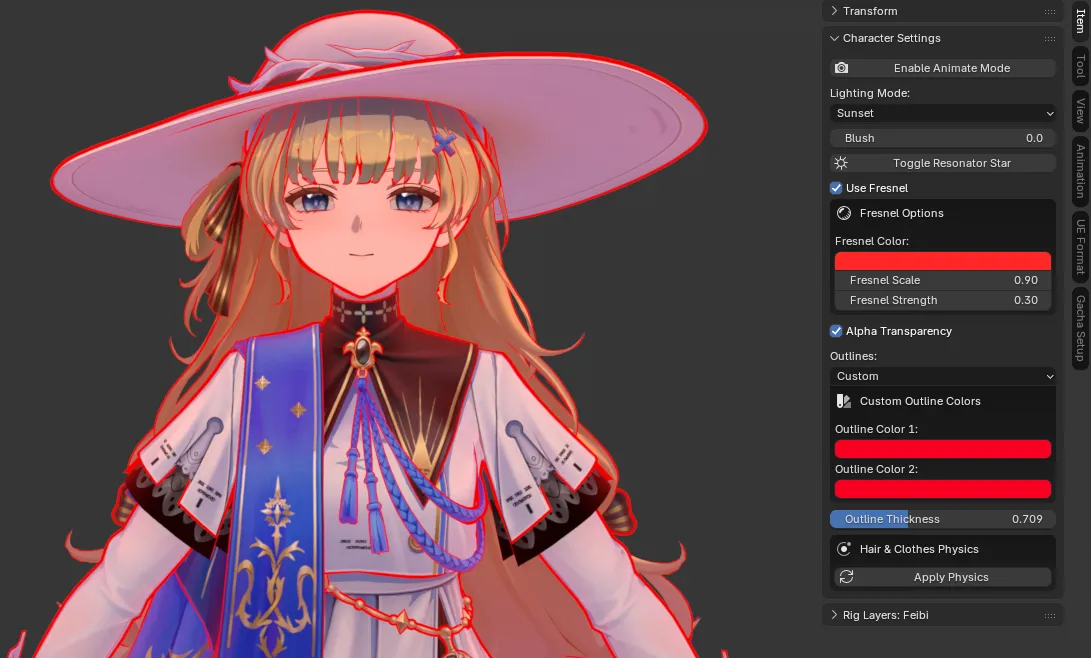
- Use Fresnel: Enables the fresnel rim effect on the shader.
- Alpha Transparency: Easily toggle transparency on alpha materials (such as transparent veils, cloth lace, and hair ribbons) between blended transparency and solid rendering.
- Outlines: Switch between Default and Custom outline colors, and adjust Outline Thickness.
Lighting Modes & Presets
Section titled “Lighting Modes & Presets”You can select from several curated lighting preset modes:
- Default: Original game lighting baseline.
- Sunrise: Warm, soft morning glow with soft blue-purple shadow tints.
- Day: Crisp, balanced daylight illumination.
- Sunset: Golden-hour tones with warm amber highlights and rich shadows.
- Night: Dim cool moonlight tones.
- Rainy: Overcast, diffused atmospheric shading.
- Custom: Unlocks granular control over Ambient, Light, Shadow, and Rim color swatches.
Fresnel & Outlines
Section titled “Fresnel & Outlines”- Use Fresnel: Enable it to reveal the Fresnel Options subpanel (Fresnel Color, Fresnel Scale, Fresnel Strength).
- Outlines: Set to Custom to reveal Custom Outline Colors (Outline Color 1 / 2) plus Outline Thickness.
Custom Colors (Custom Mode)
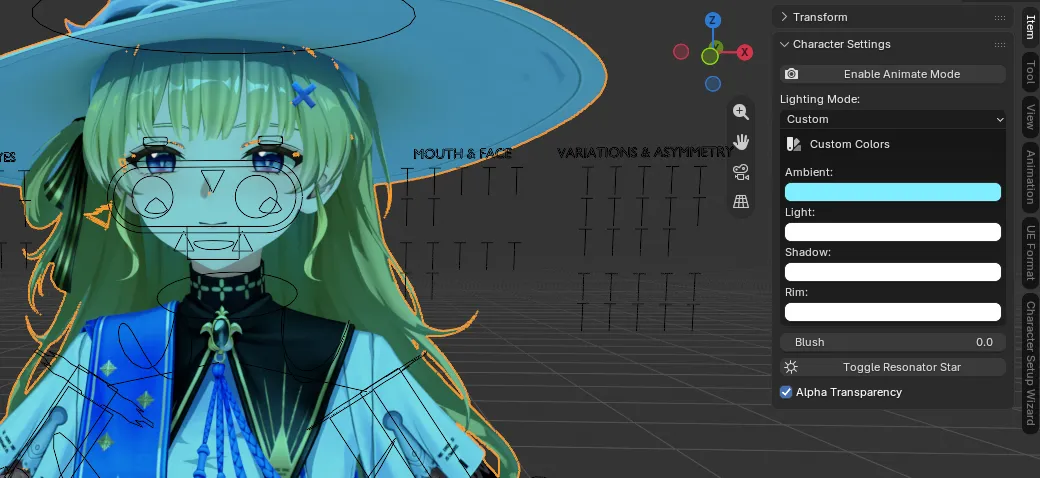
Section titled “Custom Colors (Custom Mode)”When Lighting Mode is set to Custom, the Custom Colors subpanel appears to let you fine-tune each channel of the Gustling Waters shader:
- Ambient: Controls the unshaded base ambient illumination color.
- Light: Color tint applied to fully lit regions.
- Shadow: Tone applied to shaded/occluded regions.
- Rim: Color of the specular rim light highlight.
Resonator Star & Alpha Transparency
Section titled “Resonator Star & Alpha Transparency”- Toggle Resonator Star: One-click button to toggle the visibility and animation driver for the character’s Resonator star emblem.
- Alpha Transparency: Checkbox to toggle transparency on alpha-based materials (such as transparent veils, cloth lace, and hair ribbons) between blended transparency and solid rendering.
Animate Mode
Section titled “Animate Mode”For smooth and lag-free viewport animation playback, click Enable Animate Mode in the Character Settings panel. This temporarily swaps complex toon shader trees with lightweight low-overhead materials while you animate, and you can switch back with one click when preparing your final render.