
Lights & Coloramp Configuration
1. Controlling Light & Shadow Direction
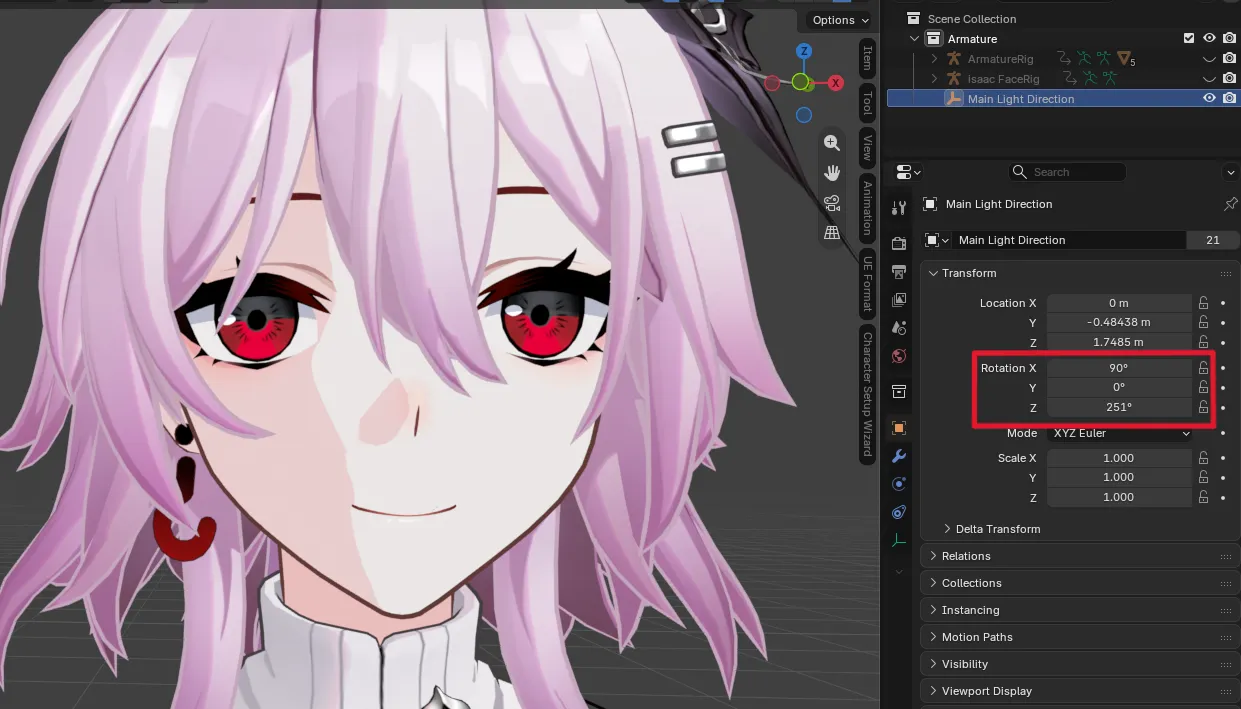
Section titled “1. Controlling Light & Shadow Direction”During character setup, a dedicated Light Direction_<Character> object is created in your scene collection.
- Locate
Light Direction_<Character>in the Outliner panel (e.g.Light Direction_March7th). - Open the Item Transform panel in Object Properties.
- Adjust the Rotation values (XYZ Euler) to rotate the light vector:
- Rotation Z: Rotates the sun angle horizontally around the character.
- Rotation Y: Adjusts the horizontal tilt of the light across the character.
- Rotation X: Adjusts the vertical pitch of the shadow line.
2. Character Settings (Item Panel)
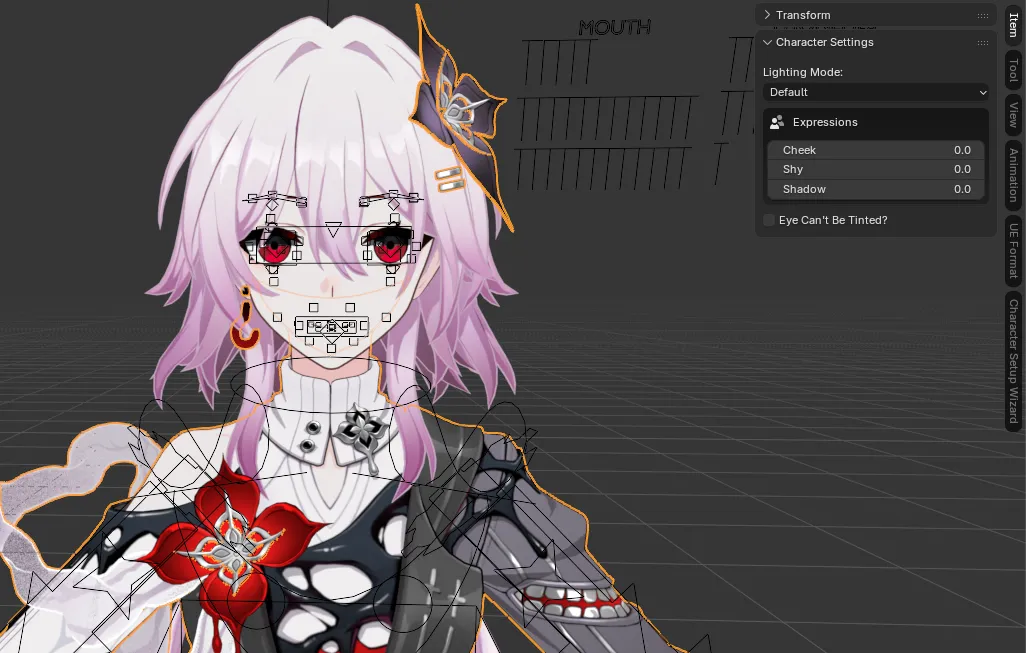
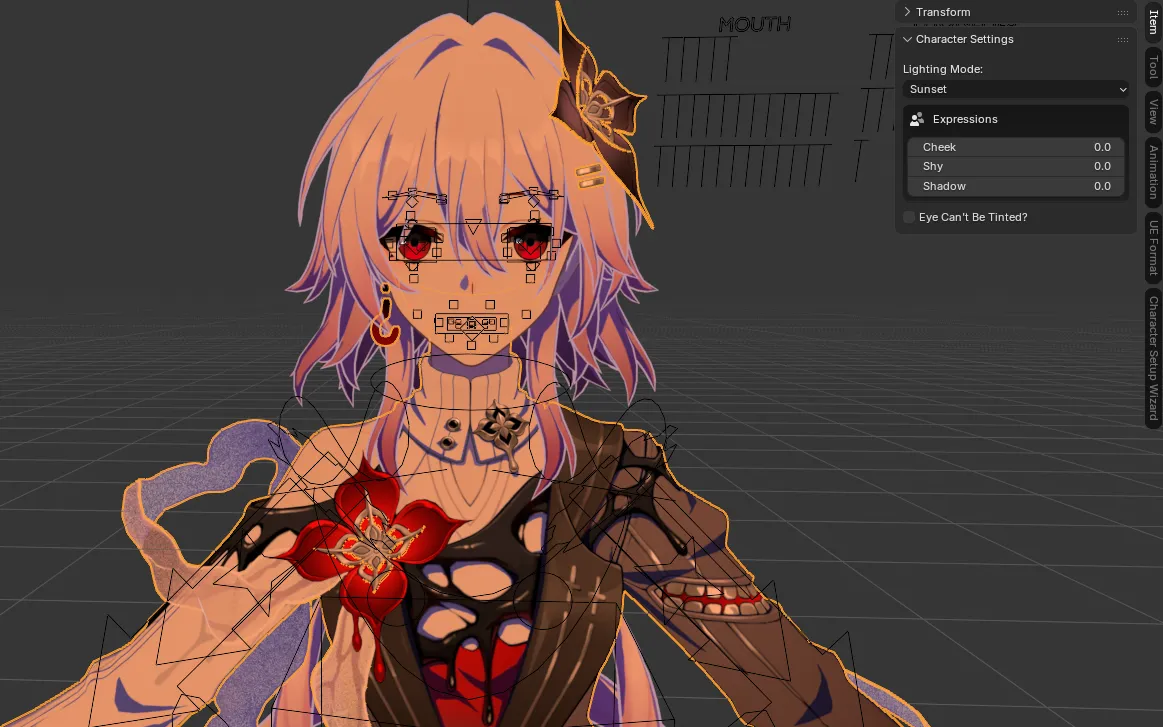
Section titled “2. Character Settings (Item Panel)”Select your character mesh or armature and press N in the 3D Viewport. Open the Item tab to access the Character Settings panel, providing real-time controls without having to manually edit shader node trees:
- Lighting Mode: Switch between built-in ambient lighting presets or choose Custom to tune individual color channels.
- Expressions: Dedicated sliders for quick facial overlays:
- Cheek: Controls blush cheek overlay intensity.
- Shy: Controls flushed cheek / shy overlay intensity.
- Shadow: Controls the forehead and face drop shadow intensity.
- Eye Can’t Be Tinted?: Enable this checkbox to prevent the character’s eyes from being tinted by environment or custom lighting colors.
Lighting Modes & Presets
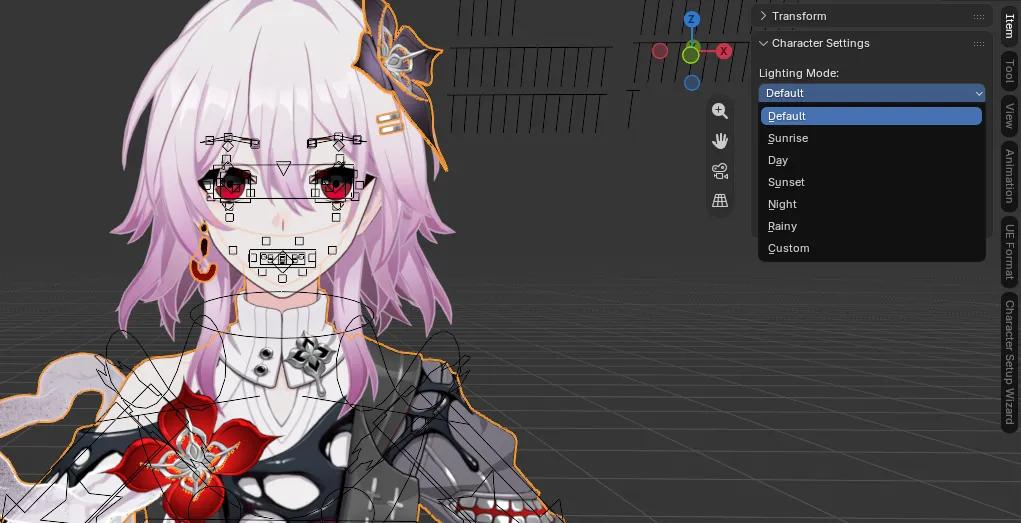
Section titled “Lighting Modes & Presets”You can select from multiple built-in lighting presets:
- Default: Default game lighting baseline.
- Sunrise: Warm morning hue with soft shadows.
- Day: Neutral, bright daylight illumination.
- Sunset: Rich golden sunset glow with deep shadow tones.
- Night: Cool, dark nighttime palette.
- Rainy: Overcast and diffuse ambient lighting.
- Custom: Displays color swatches for full custom control.
Custom Colors
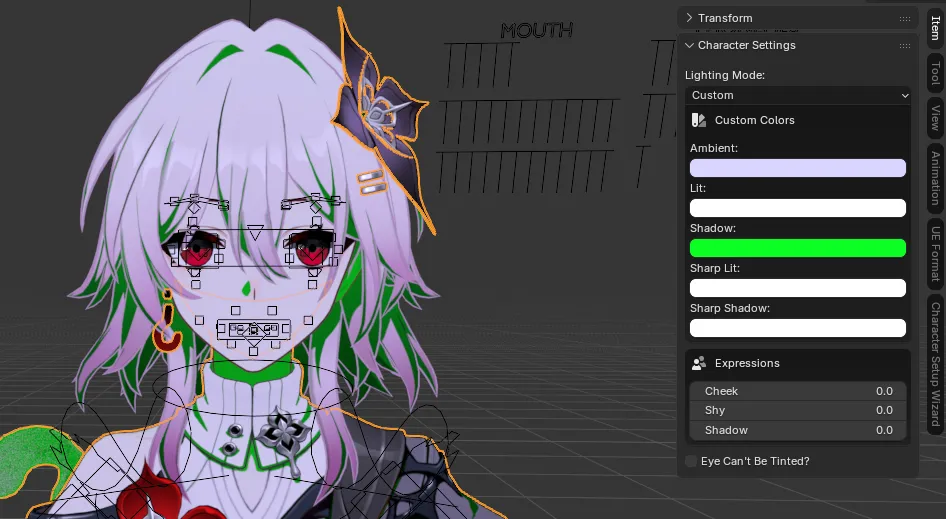
Section titled “Custom Colors”When Lighting Mode is set to Custom, you can adjust individual shader tones:
- Ambient: Base unshaded ambient illumination color.
- Lit: Primary direct light color tone.
- Shadow: Main shadow region color tone.
- Sharp Lit: Secondary lit highlights.
- Sharp Shadow: Deep occluded cel-shadows.