

Arknights: Endfield Character Setup
1. Opening the Setup Wizard
Section titled “1. Opening the Setup Wizard”- Press
Nin the 3D Viewport to open the sidebar. - Navigate to the Character Setup Wizard tab.
- In the Game drop-down menu, select Arknights: Endfield.
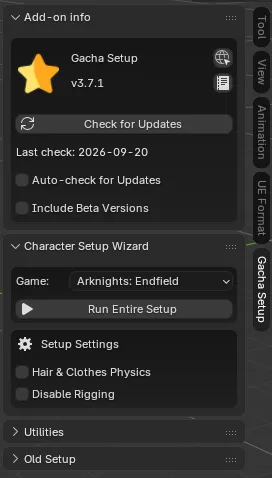
2. Importing Your Character
Section titled “2. Importing Your Character”You can set up your model in one click using Run Entire Setup or step-by-step via Old Setup.
- (Optional) Under Setup Settings, enable Hair & Clothes Physics to add dynamic physics to the hair and clothing. Enable Disable Rigging to skip rig generation and import materials + outlines only.
- Click Run Entire Setup (or Set Up Character under Old Setup).
- A file browser window will appear. Navigate to your character folder containing the
.fbxmodel (chr_XXXX_name_uimodel.fbx, e.g.chr_0032_lizhiyan_uimodel.fbx), theMaterialssubfolder, and textures. - Click Select Character Folder.
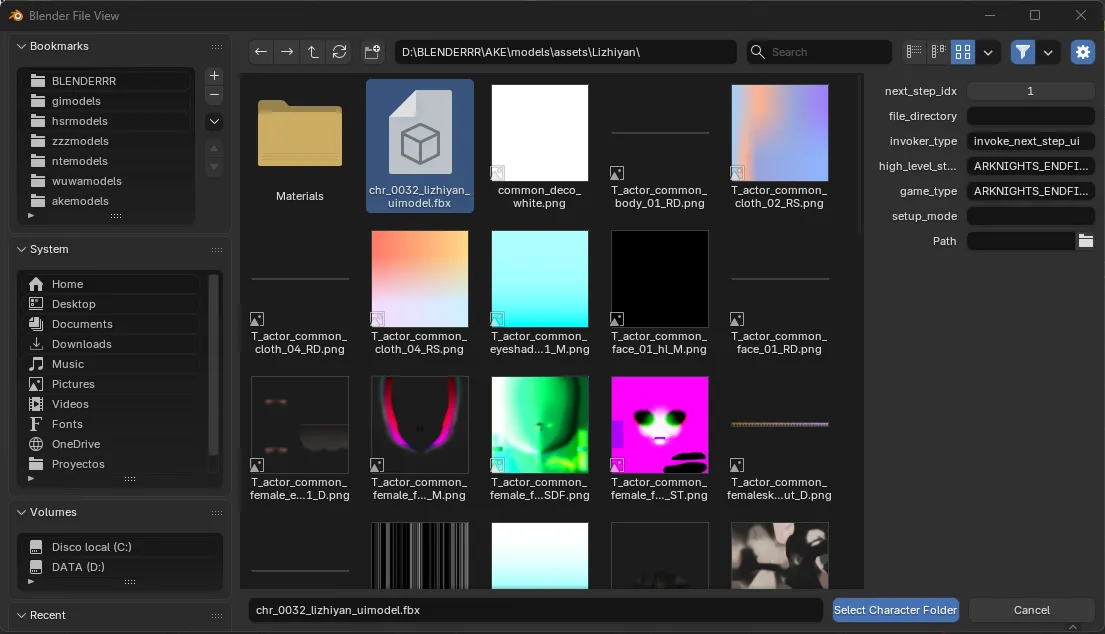
3. Automated Setup Pipeline
Section titled “3. Automated Setup Pipeline”When running the setup, the add-on executes the following automated steps for Arknights: Endfield:
- Set Up Character: Imports the
.fbxmesh, cleans vertex groups, and standardizes bone hierarchies. - Set Up Materials: Replaces default Blender materials with custom Arknights: Endfield PBRToon shader nodes (
Arknights: Endfield_PBRToonBase,BaseFace,BaseHair), binding body, cloth, face, hair, iris, and alpha materials. - Setup Outlines: Applies inverted-hull outline modifiers (
Dots Stroke) to all character meshes for crisp line art rendering. - Rig Character: Configures the Rigify armature, the Isaac Face Rig adaptation for Endfield, and the head driver system.
- Setup Compositor Nodes: Configures the compositing node tree for real-time head shadow rendering.
- Finish Setup: Switches Color Management to Standard to preserve raw texture color accuracy.
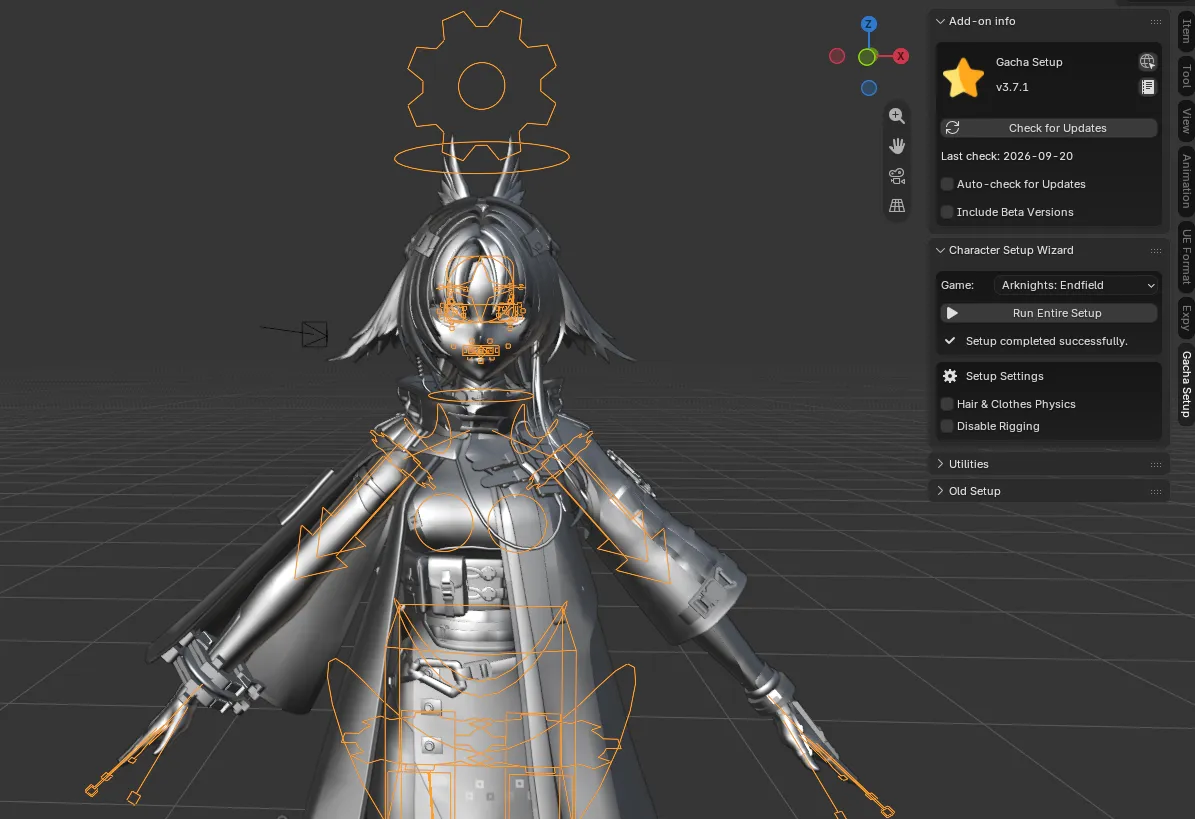
4. Viewport Shading & Compositor Settings
Section titled “4. Viewport Shading & Compositor Settings”To view the PBRToon shaders and real-time head shadow compositing in the viewport:
- Open the Viewport Shading menu (top right of the 3D Viewport).
- Under Lighting, enable Scene Lights and Scene World.
- Under Compositor, set the dropdown mode to Always (or Camera).