

Lights & Coloramp Configuration
1. Controlling Light & Shadow Direction
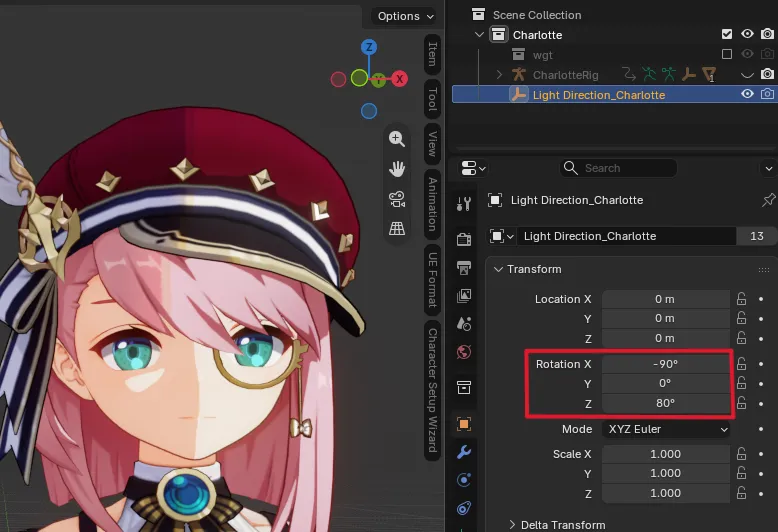
Section titled “1. Controlling Light & Shadow Direction”During character setup, a dedicated Light Direction_<Character> object is created in your scene collection.
- Locate
Light Direction_<Character>in the Outliner panel (e.g.Light Direction_Charlotte). - Open the Item Transform panel in Object Properties.
- Adjust the Rotation values (XYZ Euler) to rotate the light vector:
- Rotation Z: Rotates the sun angle horizontally around the character.
- Rotation Y: Adjusts the horizontal tilt of the light across the character.
- Rotation X: Adjusts the vertical pitch of the shadow line.
2. Character Settings (Item Panel)
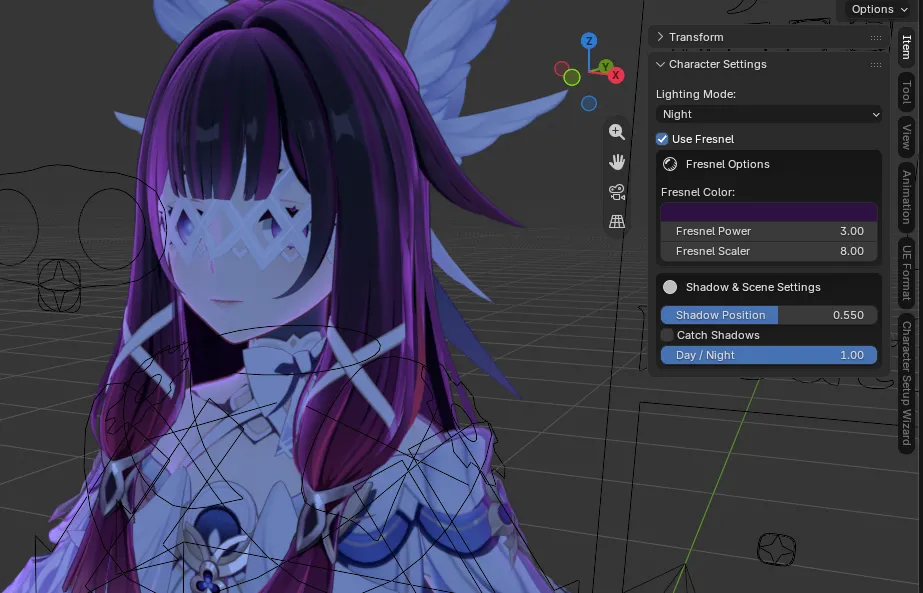
Section titled “2. Character Settings (Item Panel)”Select your character mesh or armature and press N in the 3D Viewport. Open the Item tab to access the Character Settings panel, allowing real-time adjustments without digging into the Shader Editor:
Lighting Mode
Section titled “Lighting Mode”- Lighting Presets: Quickly toggle between environmental lighting presets (Default, Sunrise, Day, Sunset, Night, Rainy).
- Custom Mode: Selecting the Custom mode reveals a custom color palette subpanel to manually fine-tune individual channels: Ambient, Sharp Lit, Soft Lit, Sharp Shadow, Soft Shadow, Rim Lit, and Rim Shadow.
Fresnel Options
Section titled “Fresnel Options”- Toggle Fresnel: Checkbox to toggle the outer rim glow effect on or off.
- Fresnel Color: Color selector to customize the rim glow tint.
- Fresnel Power: Slider 0..1 (inverted). At 0 it sets Fresnel Power to 10, at 1 it sets it to 0.
- Fresnel Scaler: Slider 0..1. At 0 it sets Fresnel Scaler to 1, at 1 it sets it to 10.
Shadow & Scene Settings
Section titled “Shadow & Scene Settings”- Shadow Position: Slider to calibrate the shadow threshold and placement across the character.
- Catch Shadows: Enable this option to cast more self-shadows across the character’s own mesh.
- Day / Night: Slider controlling the balance and transition between daytime and nighttime lighting.