
Character Settings
Character Settings
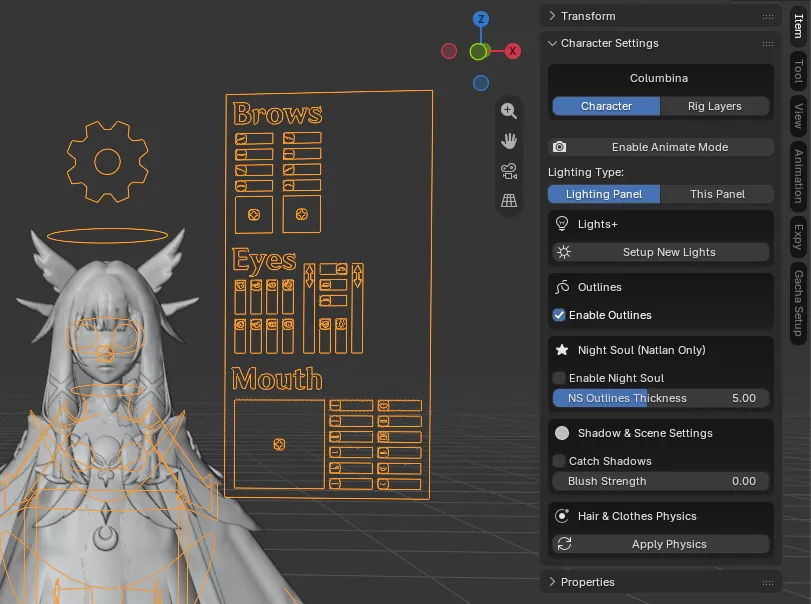
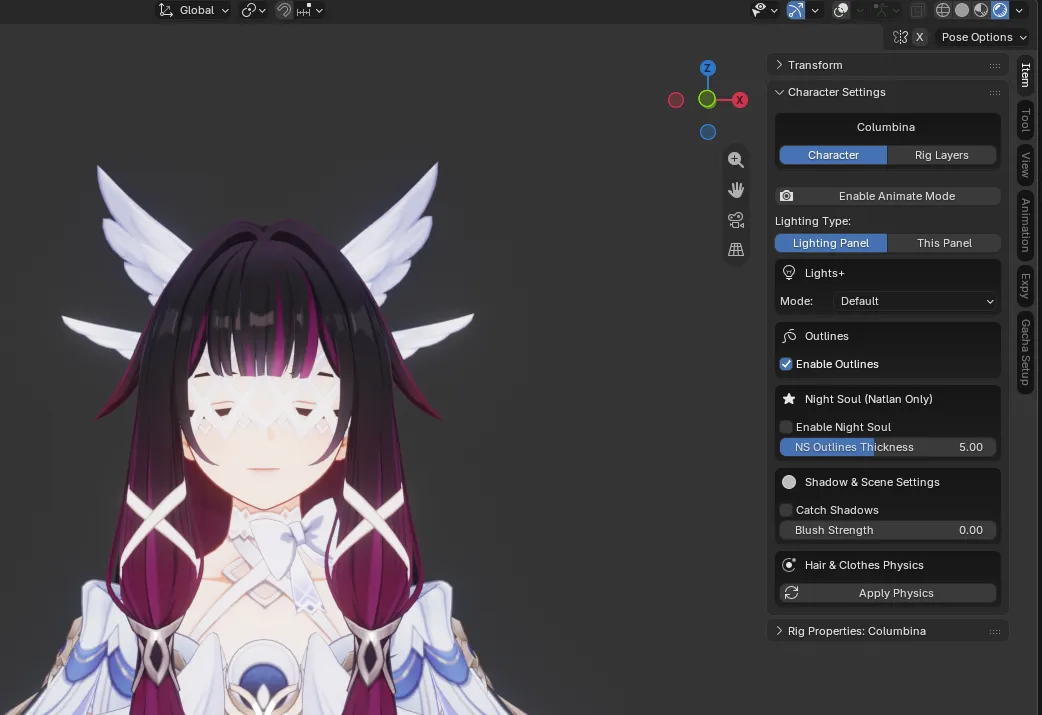
Section titled “Character Settings”The Character Settings panel is located in the Item tab of the 3D Viewport sidebar (N panel) when a character armature or mesh is selected. At the top, it displays the active character name and lets you switch between the Character and Rig Layers tabs. The Character tab provides real-time control over shader lighting, Lights+, anime outlines, shadow behavior, and physics directly without opening shader node graphs.
Animate Mode
Section titled “Animate Mode”Animate Mode enables smooth, lightweight viewport playback by temporarily swapping heavy multi-layer toon materials with lightweight alternatives and hiding outline modifiers.
- Click Enable Animate Mode when working on animation keyframes and pacing.
- Click Disable Animate Mode prior to rendering or staging final lighting.
Lighting Type & Lighting Mode
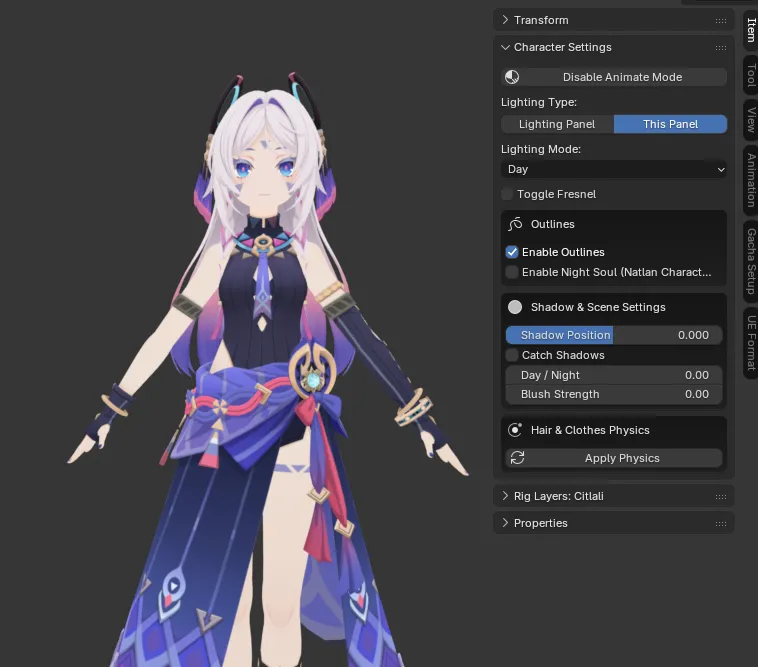
Section titled “Lighting Type & Lighting Mode”You can control character lighting either via the 3D Lighting Panel gizmo in the scene or through the Character Settings UI presets.
3D Lighting Panel
Section titled “3D Lighting Panel”When Lighting Type is set to Lighting Panel, three-dimensional color wheels and directional controllers in the 3D Viewport drive the character’s key light, ambient light, and shadow colors interactively.
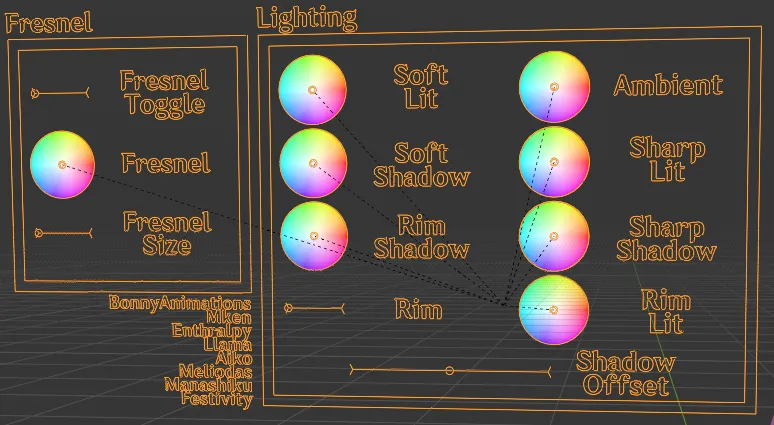
To adjust the values, enter Pose Mode, select a panel control, and press G to move it.
Lighting Presets (This Panel)
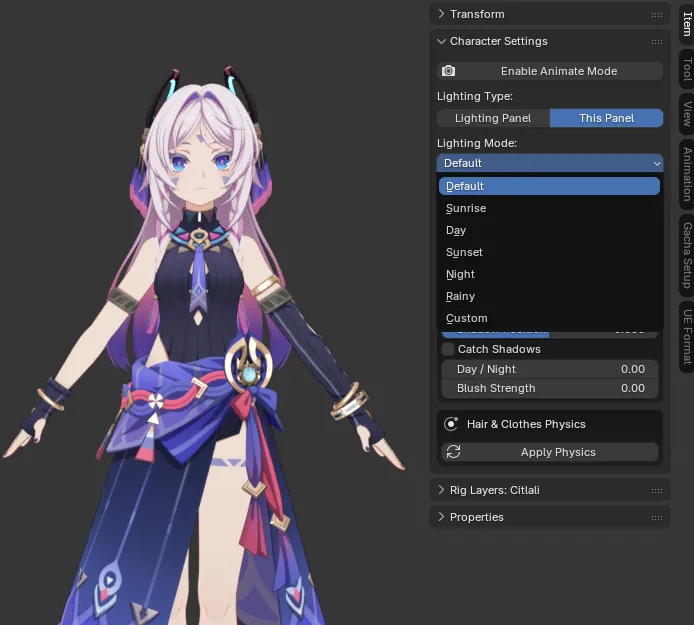
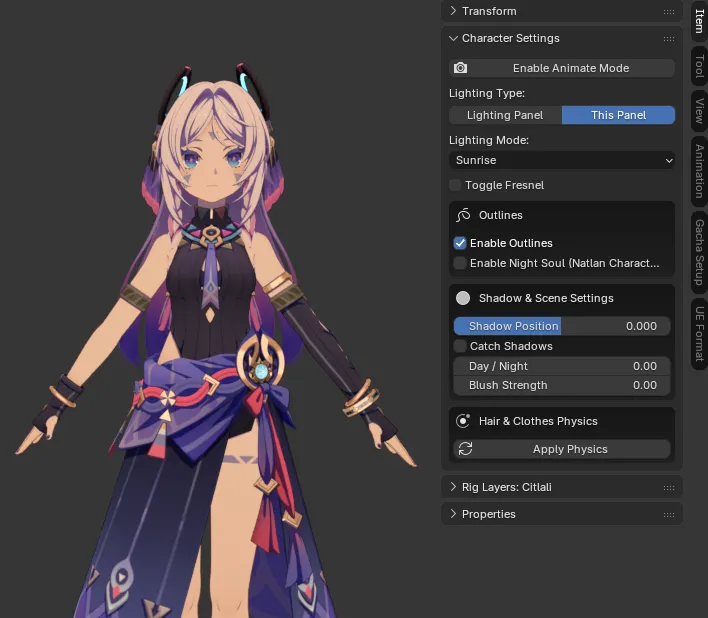
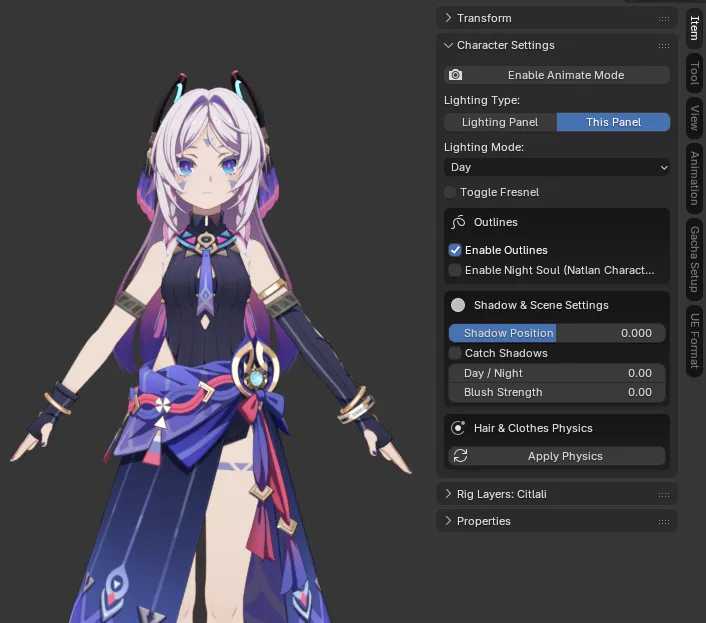
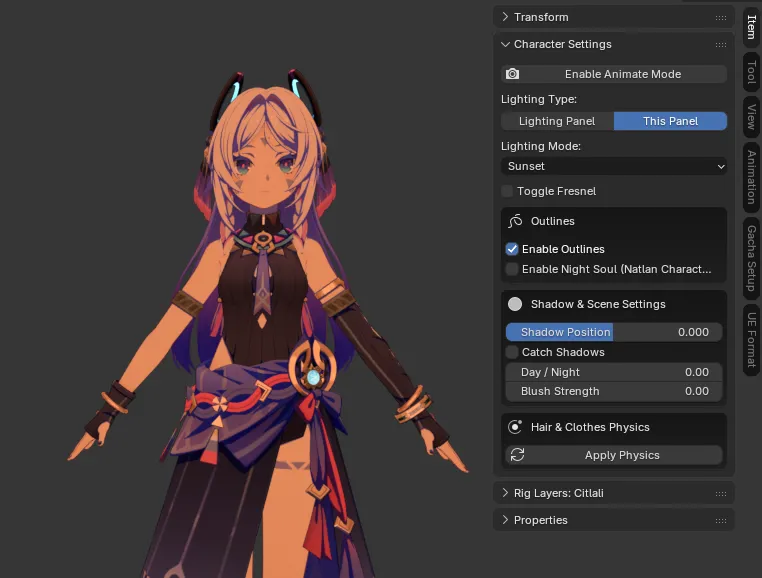
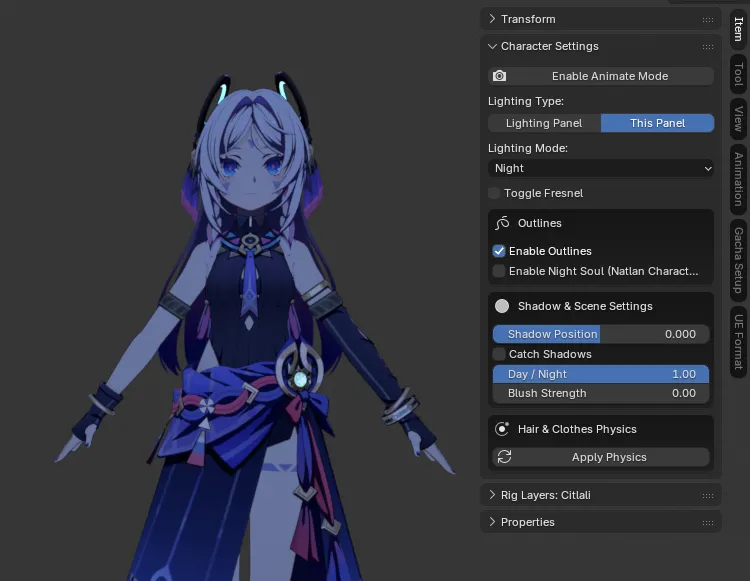
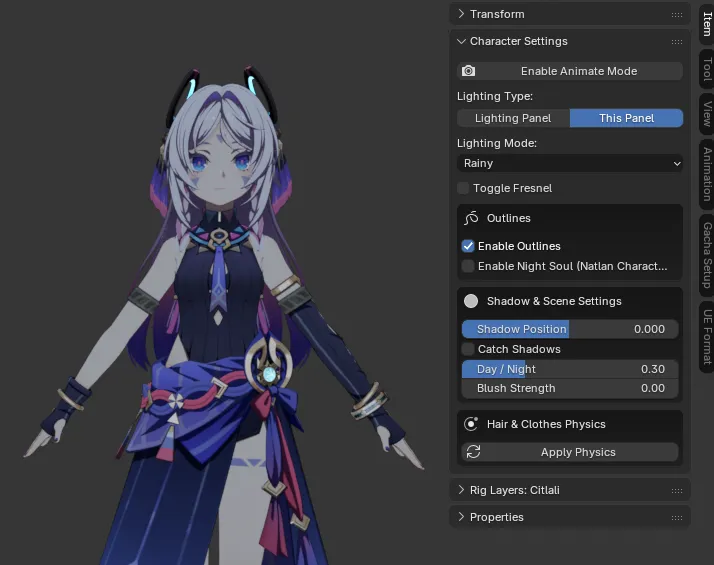
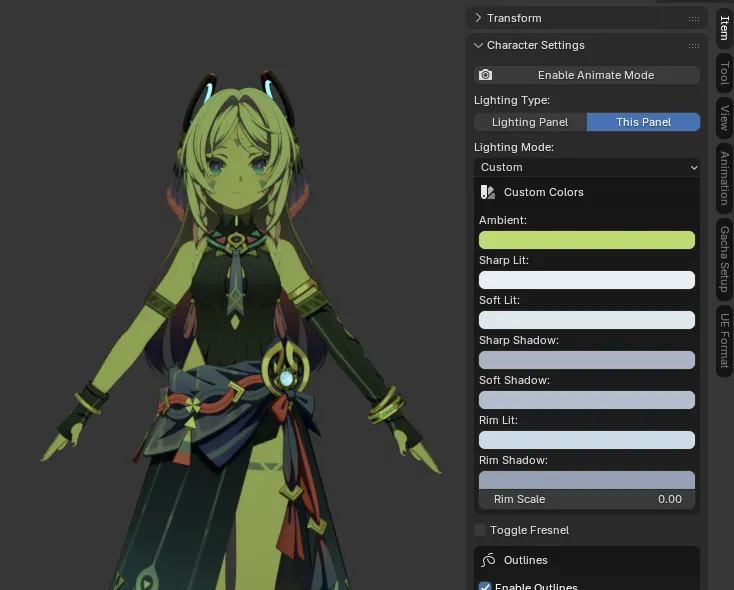
Section titled “Lighting Presets (This Panel)”When set to This Panel, you can choose between built-in lighting presets tailored for different environmental moods. Use the carousel below to explore the available lighting presets:
Lights+
Section titled “Lights+”Lights+ lets your character react to native Blender scene lights (Point, Sun, Spot, Area).
- Click Setup New Lights to initialize Lights+ on the character’s materials.
- Once enabled, use the Mode dropdown to choose how scene lights affect the character:
- Default: Uses the character’s standard toon lighting without scene light overrides.
- Diffuse: Applies directional diffuse shading and falloff from scene lights while preserving cel-shaded contrast.
- Light Color: Tints and illuminates the character directly using the color and power of scene lights.
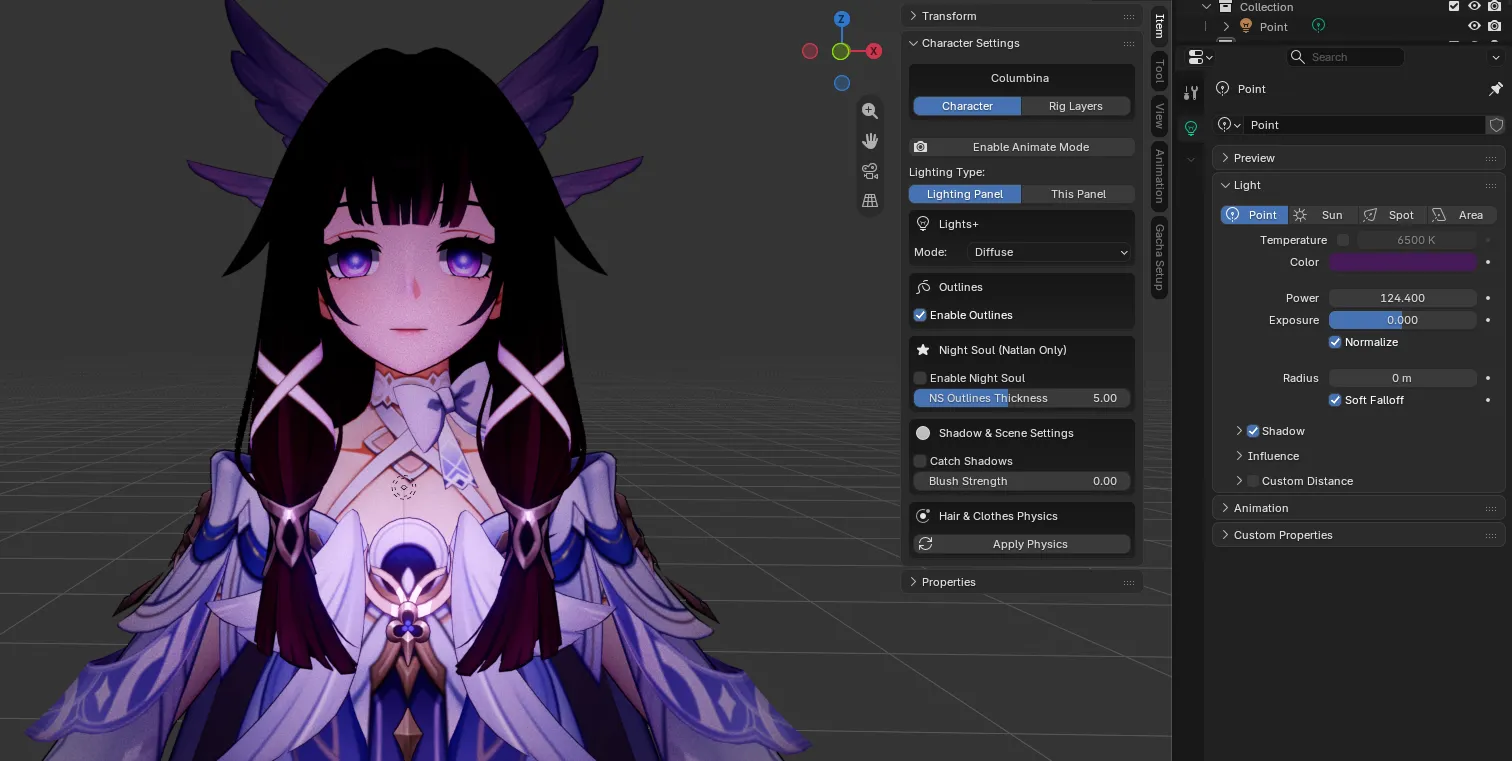
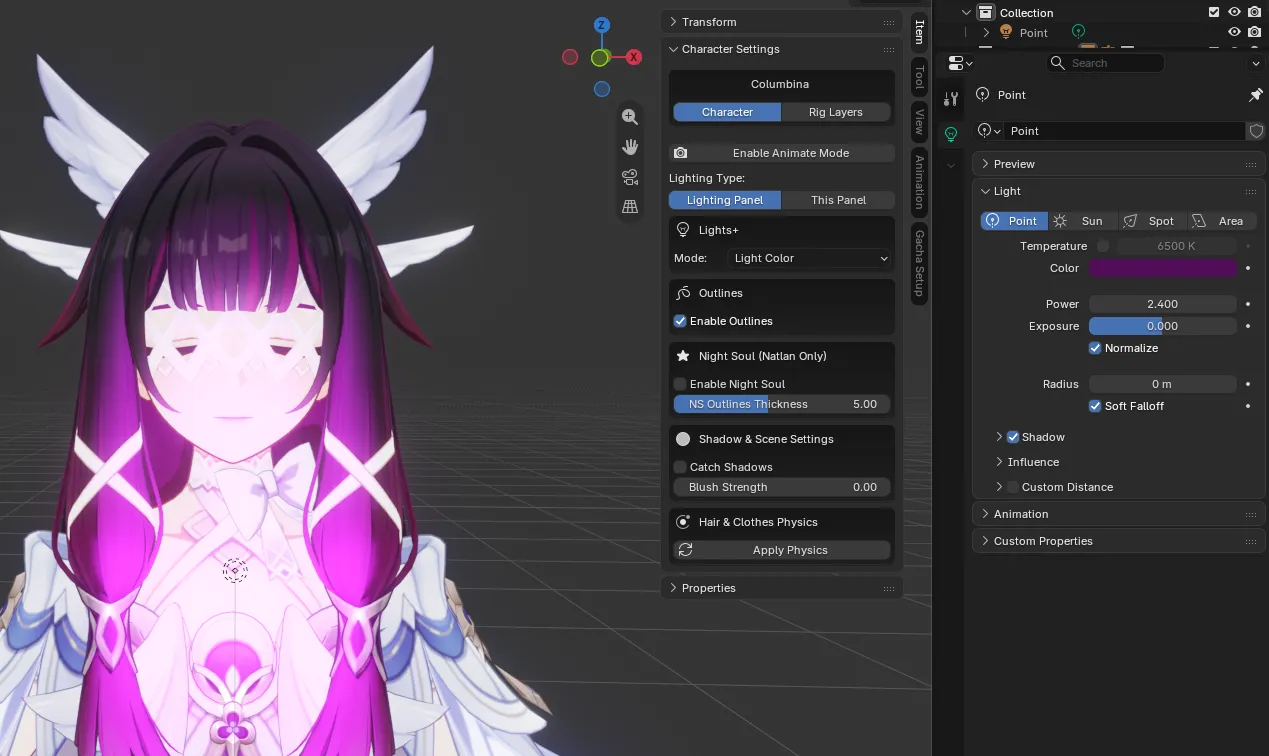
Light & Shadow Direction (Light Direction Bone)
Section titled “Light & Shadow Direction (Light Direction Bone)”During setup, a dedicated Light Direction bone is added to the character’s armature (<Character>Rig) to control where the sun and shadows strike the model.
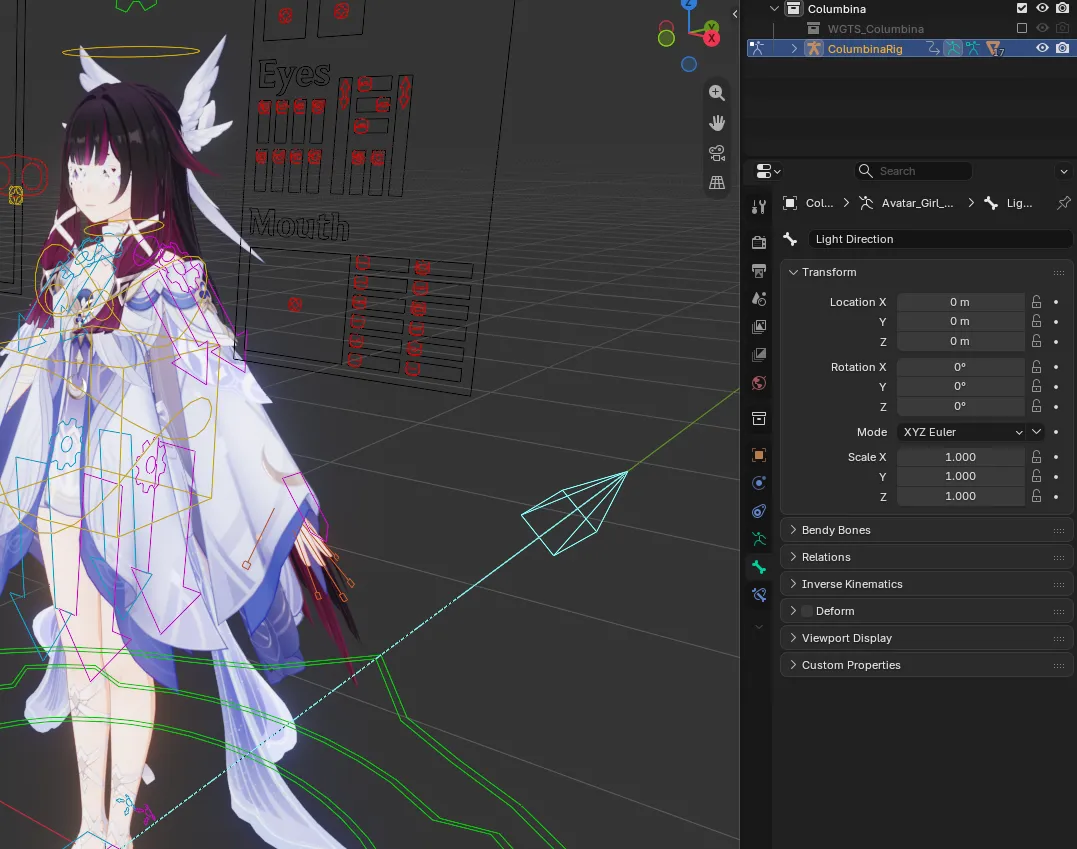
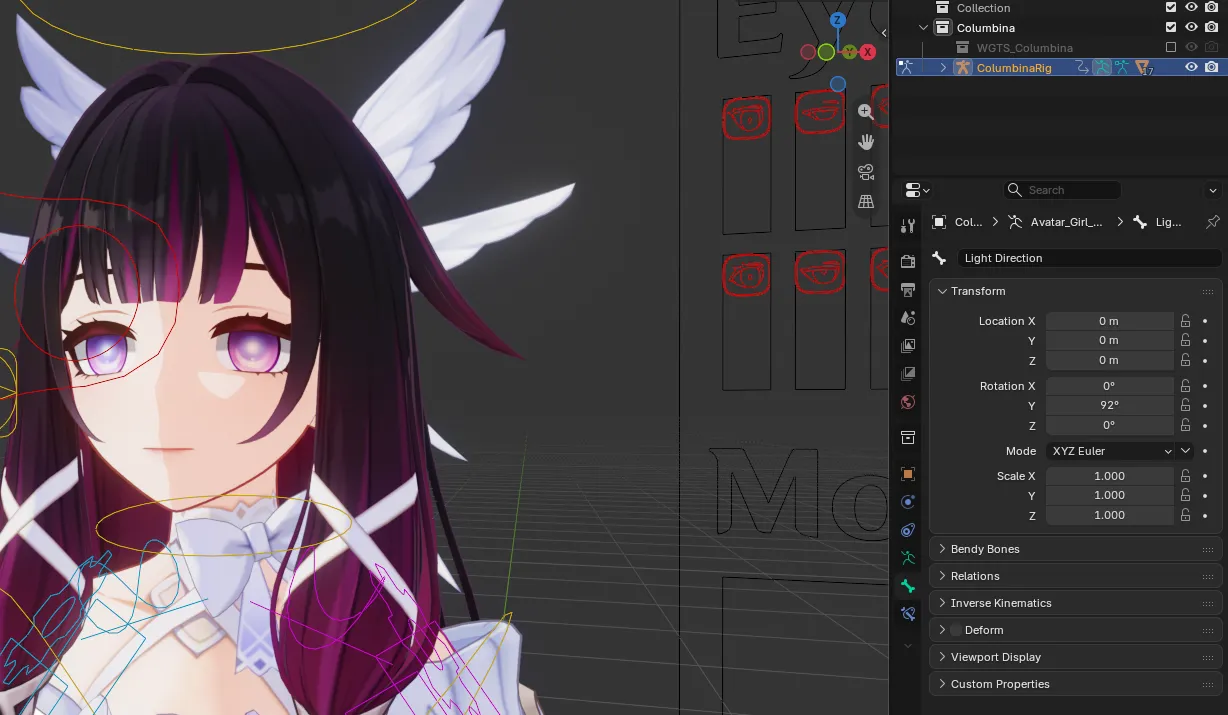
- Select the character armature (
<Character>Rig) and switch to Pose Mode. - Select the
Light Directionbone (the arrow controller). - Rotate it directly in the 3D Viewport (
R), or open Bone Properties > Transform and adjust the Rotation values (XYZ Euler):- Rotation Z: Rotates the sun angle azimuth horizontally around the character.
- Rotation Y: Adjusts the lateral tilt of the light vector across the character.
- Rotation X: Adjusts the vertical pitch and elevation angle of the shadow terminator.
Fresnel & Outlines
Section titled “Fresnel & Outlines”Fresnel
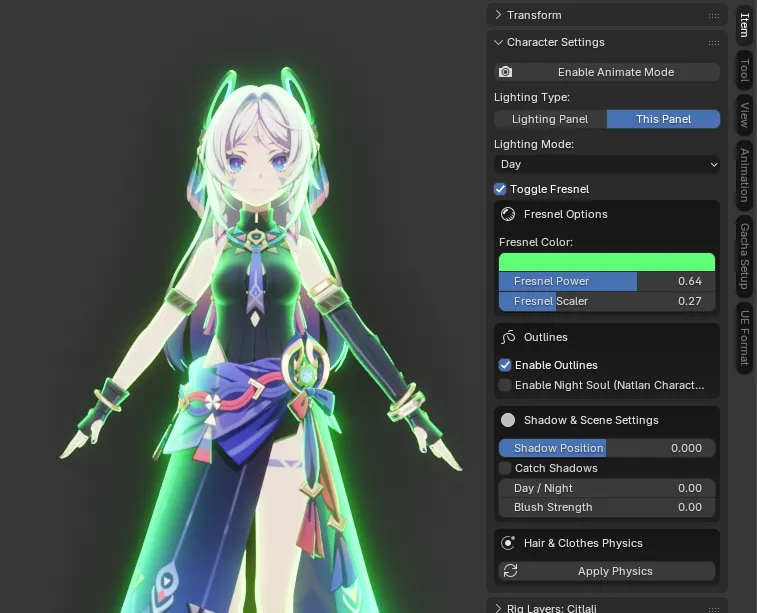
Section titled “Fresnel”Fresnel adds an edge rim/specular glow characteristic of high-end cel-shading:
- Toggle Fresnel: Enable or disable the effect.
- Fresnel Color: Tint of the outer rim.
- Fresnel Power: Falloff sharpness across curved surfaces.
- Fresnel Scaler: Overall intensity multiplier.
Outlines & Night Soul (Natlan Only)
Section titled “Outlines & Night Soul (Natlan Only)”- Enable Outlines: Quickly toggle inverted-hull outline modifiers across all character meshes.
- Enable Night Soul: (Natlan Characters in Genshin Impact) Toggles special glowing energy outlines.
- NS Outlines Thickness: Adjusts the thickness of the Night Soul outlines.
Shadow & Scene Settings
Section titled “Shadow & Scene Settings”- Shadow Position: Slides the light termination threshold on curved surfaces.
- Catch Shadows: Allows or ignores external scene shadows cast onto the character.
- Day / Night: Blends between daytime and nighttime texture ramp calibrations.
- Blush Strength: Modulates facial blush intensity where supported.
Hair & Clothes Physics
Section titled “Hair & Clothes Physics”You can interactively apply or fine-tune dynamic physics without re-running the setup wizard:
- Hair Physics Slider: Adjusts Damped Track springiness and physics influence on hair strands.
- Clothes Physics Slider: Adjusts dynamic movement on clothing and skirt accessories.
- Apply Physics / Remove Physics: Add or remove the constraint system at any time.